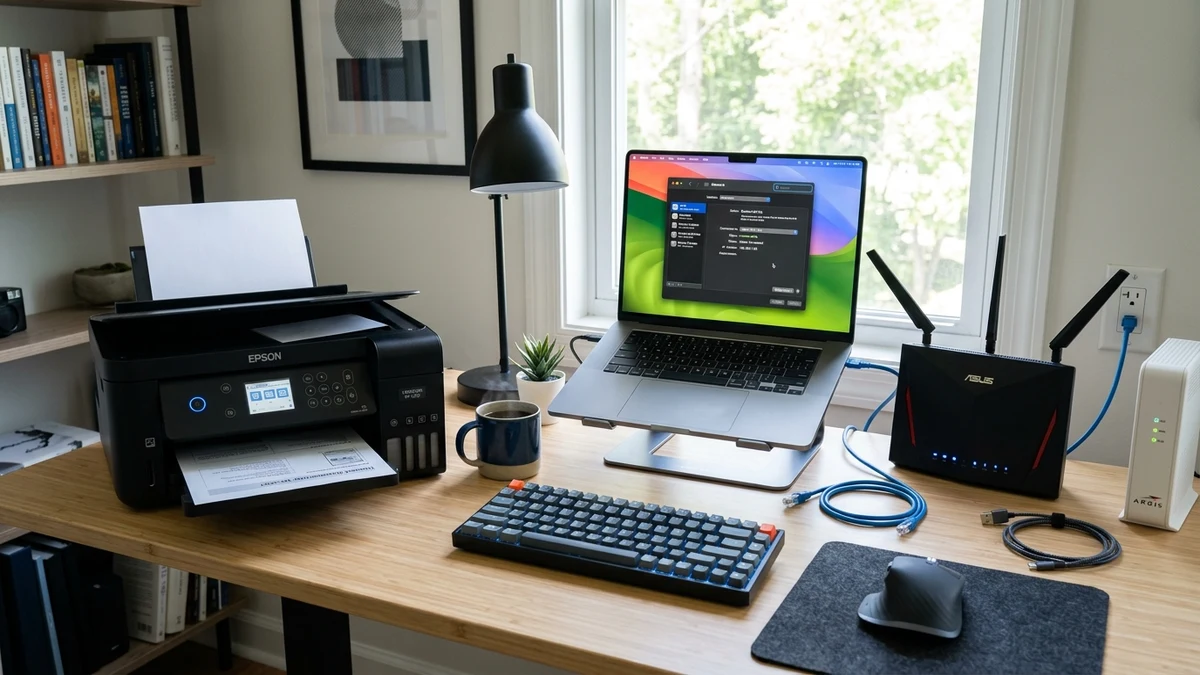
Encountering a "Printer Not Found" or "Printer Offline" notification inside Epson Photo+ can bring an exciting printing session to a complete halt. Fortunately, this issue is rarely hardware damage and almost always stems from network discovery timeouts, duplicate spooler queues, or firewall port blocks.
1. Root Causes of Offline Status in Epson Photo+
Epson Photo+ queries the local network using SNMP and WSD (Web Services for Devices) protocols. Common triggers for disconnection include:
- Dual-Band Router Band Steering: The printer joined the 2.4 GHz band while your laptop is connected to the 5 GHz band under router guest isolation.
- Stalled Print Spooler: A corrupted document queue in Windows or macOS is blocking subsequent Epson Photo+ print jobs.
- Dynamic IP Address Changes: The router assigned a new local IP to the printer, but the driver port is pointing to an expired lease.
- Third-Party Firewall / Antivirus: Security suites blocking port 161 (SNMP) or port 3629 (Epson Discovery).
2. Windows 11 and Windows 10 Resolution Steps
Step 1: Restart the Windows Print Spooler Service
- Press Win + R on your keyboard, type
services.msc, and hit Enter. - Scroll down the list and locate Print Spooler.
- Right-click Print Spooler and select Restart.
- Close Epson Photo+, reopen it, and check if your printer is now detected.
Step 2: Disable 'Use Printer Offline' Toggle
- Open Settings > Bluetooth & devices > Printers & scanners.
- Click your Epson printer model and select Open print queue.
- In the top menu, click Printer and verify that Use Printer Offline is unchecked.
Step 3: Switch from WSD to Standard TCP/IP Port
WSD ports frequently drop connection in Windows. Switching to a static Standard TCP/IP port eliminates 95% of recurring disconnects:
- Print a Network Status Sheet from your printer's LCD screen to identify its current IP address (e.g.
192.168.1.45). - Go to Printers & scanners > [Your Printer] > Printer properties > Ports.
- Click Add Port, choose Standard TCP/IP Port, click New Port, and enter the printer's IP address.
3. macOS Sonoma, Ventura & Monterey Resolution Steps
Reset the macOS Printing System
- Open System Settings and click Printers & Scanners.
- Hold down Control and click inside the left-hand printer list, then select Reset Printing System...
- Confirm the reset, enter your Mac admin password, and restart your Mac.
- Click Add Printer, Scanner, or Fax..., select your Epson printer discovered via Bonjour, and ensure the Use field selects Epson Series Driver (not AirPrint).
4. Ensuring Software & Firmware Currency
Outdated printer firmware can cause network sleep mode disconnects. Run the official Epson Software Updater utility to install the latest firmware patch. If problems persist, download the freshest installer package from our Epson Photo+ v4.0.4.0 download page.